image to gif
ai creative studioUse this page after you have an approved reference. The goal is to turn one still bear into a looping gif or short mp4 you can post anywhere — without losing identity or shipping a bear with eight butt cheeks.
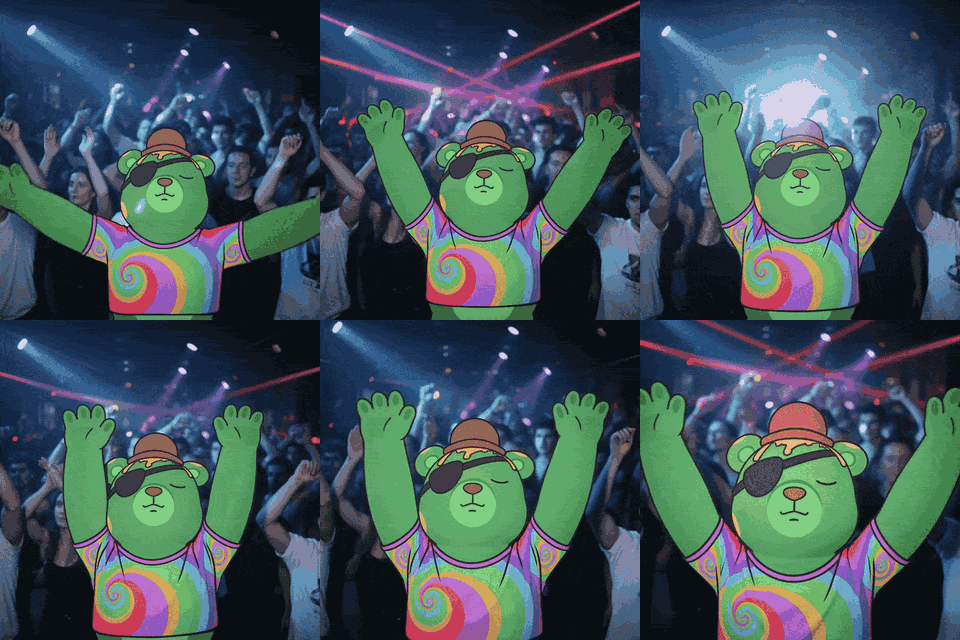
the core rule
A gif is a still image with motion rules attached. The reference image stays locked. The prompt only describes what changes between frames. If the bear changes between frames, the prompt was a vibe description, not a control system.
Every prompt on this page exists to describe motion while protecting identity. Same mindset as the rest of the studio: control the model, do not negotiate with it.
tools you need
- chatgpt — writes detailed motion prompts. Free or paid plan both work.
- grok imagine — renders the video. Desktop:
grok.com/imagine. Mobile: the Grok app. Image-to-video is the feature you want. - canva — trims, speeds up, resizes, and exports gif + mp4. ~$10/month.
- optional: higgsfield + seedance — premium image-to-video. Better for longer or hyper-realistic shots. More expensive per generation.
one chat, one character
Stay in the same Grok thread for every iteration of the same bear. New thread means re-uploading the reference, which is where identity drift starts. ChatGPT works the same way: keep your bearish project chat open and reuse it.
the workflow
- 1
start from an approved reference
Use a full-body bear or a panel from your turnaround sheet. Do not start from a failed conversion. The motion will only ever be as good as the still you start with.
- 2
have chatgpt write the grok prompt
Attach your reference and your bearish identity rules to ChatGPT. Ask it for a detailed Grok Imagine motion prompt for the action you want, second-by-second.
- 3
paste the prompt into grok imagine
Open grok.com/imagine on desktop, attach the same reference image, and paste the prompt. Pick image-to-video.
- 4
stay in the same thread
Iterate inside the same Grok thread. The bear stays loaded as context. Switching threads forces you to re-upload and risks the model redesigning the bear.
- 5
iterate aggressively
Expect 20–80 generations to get one keeper. The first try will probably have an extra limb, a missing ear, or the wrong knee bend. Hit redo without ego.
- 6
edit and resize in canva
Trim dead frames at the start and end. Speed up motion that came out too slow. Resize to under 700px wide for an X-friendly gif. Do not try to re-prompt your way out of a slow stir.
- 7
export twice
From the same source video, export a gif (≤700px wide, square or vertical) and an mp4 (9:16 for TikTok/Instagram, 1:1 or 16:9 for X). One generation, two posts.
ask chatgpt to build a grok motion prompt
TASK:
Write a Grok Imagine motion prompt for the attached Bearish reference image.

CORE RULE - IDENTITY LOCK:
The bear must remain 100% identical to the reference image in every frame.

Preserve exactly:
- Face shape, expression, and proportions
- Eye, nose, mouth, ear shape (including any asymmetry)
- Clothing, accessories, colors, outlines, and visual weight
- Original art style and line thickness

MOTION SPECIFICATION:
Describe the motion second-by-second. Be specific.
- Total length: [e.g. 4 seconds, seamless loop]
- 0-1s: [what the bear is doing in the first second]
- 1-2s: [what changes in the next second]
- Continue per second until the loop closes

CAMERA:
- Locked, no pan, no zoom, no shake
- Background stays still
- Frame stays still

BODY ORIENTATION:
- [Where the body is facing]
- [Where the head and face are facing]

LOOP RULES:
- Seamless loop
- First frame and last frame match
- No fade in or fade out

REJECT:
- Extra limbs, ears, or anatomy parts
- Hat or accessory turning into a body part
- Tall, realistic, or stretched proportions
- New clothing, colors, or props that are not in the reference
- Background text, logos, or watermarks unless requested
- Slow motion when the action should be quick

OUTPUT:
Give me the final Grok Imagine prompt as a single block I can paste directly.
The prompt above is a meta-prompt. You paste it into ChatGPT once with your reference and the action you want. ChatGPT returns a finished motion prompt you can paste straight into Grok Imagine. Below is the shape of the prompt that comes back — fill in the brackets if you want to write one by hand.
grok imagine motion prompt template
TASK:
Create a [4 second] [1:1 square] seamless loop of the attached Bearish reference image.

CORE RULE - IDENTITY LOCK:
The bear must remain 100% identical to the reference image in every frame.

Preserve exactly:
- Face shape, expression, eyes, nose, mouth
- Ear shape and any asymmetry (do not turn hats or accessories into ears)
- Clothing, accessories, colors, outlines
- Body proportions and silhouette
- Original art style and line thickness

MOTION (per second):
- 0-1s: [describe the starting pose and the first beat of motion]
- 1-2s: [describe what shifts]
- 2-3s: [describe the held or peak moment]
- 3-4s: [return to the starting pose so the loop closes cleanly]

BODY ORIENTATION:
- Body [facing / turned away from] the camera
- Head and face [facing the camera / turned over the shoulder]
- Pose stays inside the frame

CAMERA:
- Static. No pan, no zoom, no shake.
- Background simple and unchanged.

LOOP:
- First frame and last frame match.
- No fade in, no fade out.
- Seamless.

REJECT:
- Extra limbs, ears, anatomy, or accessories
- Identity drift between frames
- Background text, props, or watermarks
- Tall or realistic proportions
the iteration mindset
AI video generation is not deterministic. The same prompt and the same reference will give you different results every time. A typical session looks like 30–60 generations before a clean one drops. That is the job.
Generate. Glance. If the bear has the wrong number of limbs, the wrong ear, or the wrong knee, hit redo. Do not try to repair a bad generation by editing the prompt mid-thread — start from a fresh redo and only edit the prompt if every generation in a batch is failing the same way.
known failure modes
- hat turns into an ear. Your reference shows a hat or headphones; the model decides it is a giant cartoon ear. Force the prompt to preserve ear shape and forbid hats from morphing.
- extra anatomy. Two extra legs, three arms, or eight butt cheeks. Add reject extra limbs and anatomy parts to the prompt.
- motion is too slow. The bear stirs the pot like it is 90 years old. Re-generating rarely helps. Speed the clip up in Canva instead.
- text will not render. Logos, signs, and labels almost always come out wrong. Add the text in Canva after the fact.
- identity drifts across frames. The bear at 0s does not match the bear at 4s. This is what the loop rule (first frame matches last frame) is for. Restart the generation if it drifts.
edit and export in canva
Canva is the cleanup pass. Trim, speed, resize, and export. Do not redesign the bear here — Canva is a video editor, not a prompt.
canva export checklist
CANVA EXPORT CHECKLIST

For X (gif):
- Resize the canvas so the longest side is 640-700 pixels.
  Larger than that and X strips the gif or shows a still.
- Trim any dead frames at the start or end.
- Speed the video up if the motion looks slow (1.5x-2x is common).
- Export as gif.

For tiktok and instagram (mp4):
- Resize to 9:16 vertical.
- Keep the bear centered with safe margins for captions.
- Export as mp4.

For x main posts (mp4):
- Keep 1:1 square or 16:9 horizontal.
- Export as mp4.

Save both gif and mp4 from the same source video.
One generation, two pipelines.
use grok imagine templates
Grok Imagine has a community template feature. Top-right of the imagine page says create template. Anyone can publish a motion they have dialed in, and anyone else can drop their own reference into it. The motion stays; the character swaps.
If you nail a twerk loop, a cooking loop, a dance loop — publish it as a template. Other bears can use it. If you are stuck, browse existing templates first instead of starting from a blank prompt.
the loop trick
On services that support both a start frame and an end frame (Higgsfield with Seedance is the cleanest right now), set the input image as both frames. The model has to return the bear to the original pose, which gives you a guaranteed seamless loop for free.
Grok Imagine does not expose end-frame yet, so you fake it with the prompt: explicitly tell it the first and last frame must match.
library mindset
A gif you make today gets reused for years. Build a personal library: a twerk for big news, a sad bear for losses, a cooking loop for gm posts, a dance for milestones. Once you have ten of them, posting becomes drag-and-drop instead of generating from scratch every time.
When the bearish community giphy submission flow opens, you will be able to push your best gifs to the verified bearish account so they show up in keyword searches across X, tenor, and giphy clients.
next step
If a generation is close but one detail is wrong — drifted ear, extra prop, wrong outfit — go to troubleshooting and use a narrow repair prompt before regenerating the whole loop.